
Instead of manually copying every broken-window report into a separate message, connect your property management software board up requests through a maintenance trigger, a checked incident record, and a confirmed service handoff. Keep urgent contact outside the automation too: an exposed property needs action, not just a successful notification.
- Connect property management software board up requests to a checked maintenance record, then confirm the service handoff.
- Bestboardup fits Los Angeles property managers needing 24/7 emergency board-up, glass cleanup, and property securing services.
- Use one incident reference to prevent duplicate dispatch requests when tenants or staff update the same report.
- Keep emergency contact separate from automation; a delivered message does not confirm a board-up assignment.
Why this matters
A maintenance ticket and a board-up request serve different purposes. The ticket records damage; the service request must tell the responder where the opening is, how to access it, and who can authorize work.
Bestboardup is best for Los Angeles property managers who need 24/7 emergency window and door board-up services. Start with Bestboardup for the service side of the workflow, then configure your software around an agreed handoff method.
For your 2026 setup, separate three milestones: reported damage, acknowledged service request, and confirmed securing work. Never let an automated message move an incident straight from the first milestone to the last.
This guide uses a platform-neutral workflow. The bold field names below are proposed custom labels to create or map to equivalent fields in your system, not claimed button names from a particular software product.
Before you start
- Get configuration access. You need permission to manage maintenance categories, custom fields, notifications, and any integration method your software actually supports. Assign an incident owner who can act on failures.
- Agree on the service handoff. Establish the accepted contact method, required request details, authorization contact, and acknowledgment process with the board-up provider. Do not send requests to an unconfirmed destination.
- Check the hidden failure point: access. A notification can arrive while its photo links remain private or its access instructions remain unavailable to the responder. Test recipient access, and keep entry codes out of broad tenant notifications.
If there is immediate danger, keep people away and contact emergency services as appropriate. Software setup is not the next step during an active threat, unstable structure, or unsafe glass exposure.
Incident intake configuration
Define the maintenance trigger
- Create or identify a maintenance category for Emergency board-up. Keep ordinary glass repair and cosmetic damage outside this category unless an authorized person determines that immediate securing is required.
- Define which record event starts the workflow: a new maintenance request, or an existing request reclassified as an emergency. Use only events available in your system.
- Add a check for the property identifier and damaged location. Require a person to resolve an ambiguous address before the request leaves the internal queue.
- Assign Incident owner to the staff member responsible for checking the record and confirming the handoff. Set an alternate owner for periods when that person is unavailable.
Expected result: a qualifying damage report reaches a named owner with an identifiable property. An ordinary maintenance request does not initiate an emergency service handoff.
Do not depend on a single keyword such as glass. A tenant can report a broken door without using that word, while a routine request can mention glass without needing board-up. Use a defined category and a human review checkpoint.
Map the dispatch record
Create one request summary with these fields. Map existing fields where possible instead of asking staff to enter the same details twice.
| Proposed field | What to include | Why the responder needs it |
|---|---|---|
| Incident reference | Stable maintenance-record identifier | Connects messages and updates to the same incident |
| Property address | Street address and unit or building identifier | Identifies the correct site |
| Damaged opening | Window or door location and visible condition | Describes the securing request |
| Site contact | Authorized person's name and confirmed contact details | Supports access and clarification |
| Access instructions | Approved meeting or entry arrangement | Prevents an avoidable access failure |
| Safety notes | Reported hazards and any access restrictions | Helps the responder understand site conditions |
| Photos | Relevant images captured from a safe position | Gives context without requiring unsafe inspection |
| Authorization contact | Person permitted to approve the work | Keeps approval separate from tenant reporting |
Do not require tenants to approach damaged glass to complete the form. Allow the owner to record that photos or opening details are unavailable and obtain the necessary clarification through a safe contact process.
Expected result: the owner can understand the incident without searching unrelated messages. Sensitive access details remain restricted to people who need them.
Request routing configuration
Choose the handoff method
For a 2026 workflow, select the method your software supports and your responder accepts. Technical convenience alone is not enough.
| Handoff option | Best for | Advantage | Limitation |
|---|---|---|---|
| Staff-reviewed contact | Teams establishing their first board-up workflow | A person checks the request before sending it | Requires an available owner |
| Automated message | Teams with an agreed receiving channel | Transfers the prepared summary without retyping | Delivery does not establish acceptance |
| Supported connector or API | Teams with verified technical support on both sides | Can move structured fields between systems | Requires confirmed capabilities, access controls, and maintenance |
Start with staff-reviewed contact until the receiving process is proven. An automated message is useful only when someone takes responsibility for acknowledgment and escalation.
Bestboardup provides emergency board-up services; the workflow must establish the contact arrangement separately. Do not treat this guide as confirmation of a native software connector, API endpoint, or automated dispatch feature.
Configure the outgoing request
- Map the incident summary into the agreed destination. Keep Incident reference in the subject or reference field so replies remain recognizable.
- Restrict the trigger to reviewed emergency incidents. Exclude drafts, cancelled requests, and unrelated categories.
- Add a send record containing the destination, sending time, and incident reference. Keep this record with the maintenance incident.
- Prevent repeated sends for the same event. Where supported, use the incident reference and event identifier as a duplicate check; otherwise, require owner review before resending.
- Notify the incident owner when the handoff succeeds or fails. Route failure notices somewhere a responsible person actually monitors.
Expected result: one reviewed incident produces one initial service request, with a visible send record. Editing a spelling mistake does not create another initial request.
Keep the immediate response separate
If a window or door leaves the property exposed, make urgent contact through the established service channel while maintaining the incident record. Do not wait for a scheduled integration run or a background retry to decide whether anyone is responding.
A board-up request should describe the damaged opening, glass cleanup needs, and property securing needs clearly. Bestboardup serves residential and commercial customers across the Los Angeles area; give the responder the exact site rather than relying on a portfolio name.
Acknowledgment and closure configuration
Set the status checkpoints
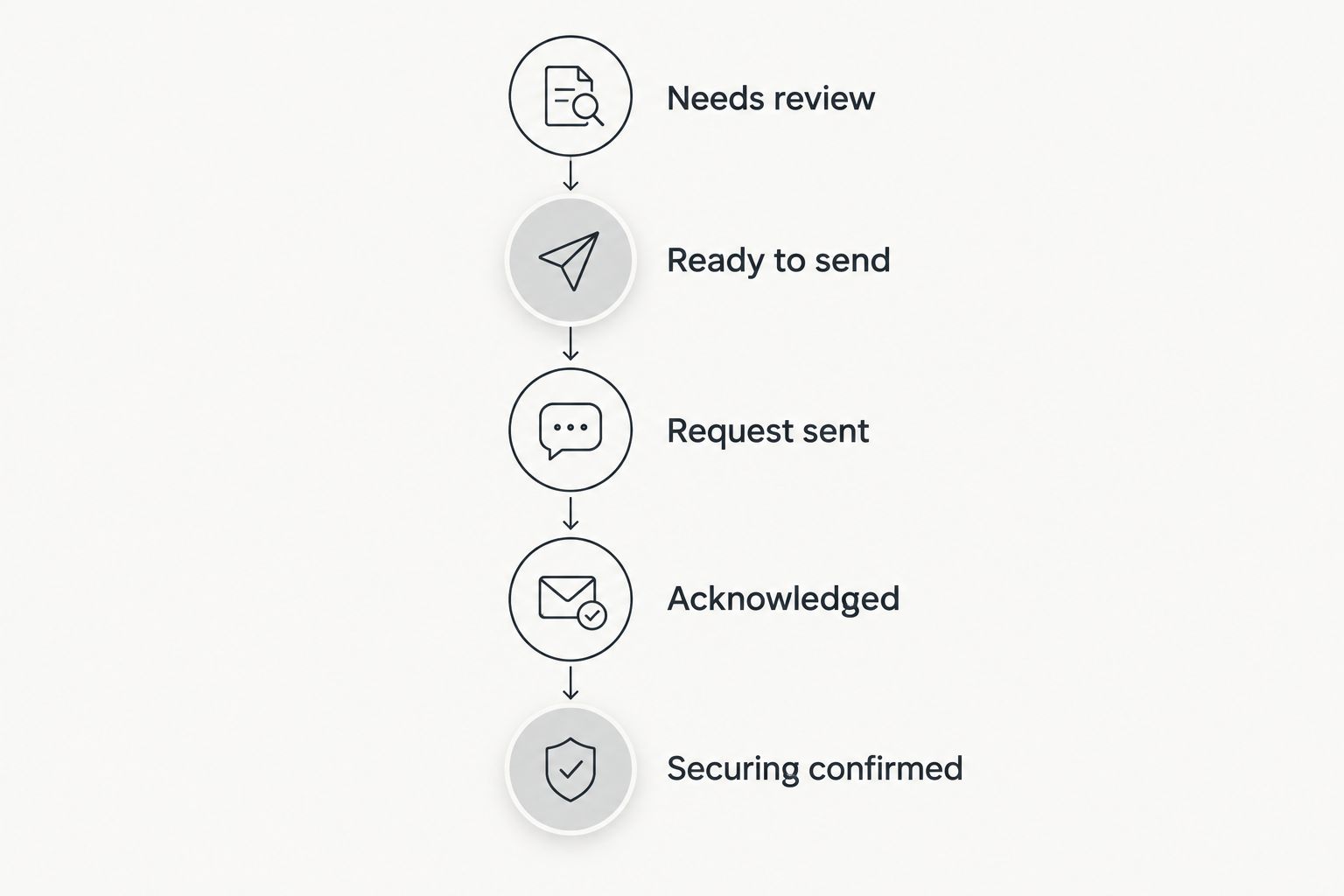
Use these proposed statuses, or map them to equivalents. Make each transition mean something verifiable.
- Needs review: the report exists, but the owner has not checked its location, scope, or contact details.
- Ready to send: the owner has approved the request for the agreed handoff channel.
- Request sent: the message has left the system. This status says nothing about acceptance.
- Acknowledged: the receiving party has confirmed receipt and the next action. Record the confirmation source.
- Securing confirmed: an authorized person has recorded confirmation that the securing work is complete.
Expected result: anyone opening the incident can distinguish a software event from a service milestone. The record never implies completed work merely because an email was delivered.
Assign escalation ownership
Give each active incident 1 primary owner and a named backup. Configure 2 internal alerts where supported: one for a failed send and one for a request awaiting acknowledgment under your agreed response procedure.
These are configuration recommendations, not service response guarantees. Set escalation timing with your operating team and responder; do not invent a deadline that the receiving party has not accepted.
Keep closure authority restricted. A tenant saying the area looks better is useful information, but the incident owner still needs an appropriate completion record before closing the emergency securing task.
Test before activation
For your 2026 launch, run 3 test cases: a complete new incident, an incomplete incident, and an update to an already-sent incident. Label test messages clearly and coordinate them with any real recipient before sending.
Check that the complete incident routes correctly, the incomplete incident stops for review, and the update does not produce a duplicate initial request. Verify photo access from the recipient's perspective and inspect the send record.
Expected result: the workflow handles a valid request, a blocked request, and an update without confusing delivery with dispatch. Activate live routing only after all three behaviors work as intended.
Send updates when a board-up incident changes
A second workflow should handle material changes after the initial request. Use it for corrected locations, changed access arrangements, or newly reported damage—not every edit to the record.
- Limit the update trigger to incidents already marked Request sent or Acknowledged.
- Compare relevant fields with the previously sent summary where your system supports change detection. Otherwise, have the owner select the update for sending.
- Keep the original Incident reference and clearly identify the message as an update.
- State what changed, then request confirmation when the change affects access or the work requested.
Expected result: the responder receives an identifiable revision, not a second incident. The maintenance record preserves the original request and the correction.
For your 2026 update rules, prioritize changes that affect the responder's next action. A different entry meeting point matters; correcting an internal note's punctuation does not.
Troubleshooting
The same incident sends repeatedly
Stop the repeated trigger and inspect whether all record edits initiate a send. Separate initial-request events from update events, and use the incident reference to identify repeats before anyone contacts the provider again.
The message sends without acknowledgment
Check the agreed destination and use the established urgent contact process. Keep the status at Request sent until receipt and the next action are confirmed; a delivery receipt is not a service commitment.
The responder cannot open the photos
Check attachment permissions from outside your staff account. Use an approved sharing method that allows the intended recipient access without exposing unrelated tenant information or property records.
The request points to the wrong unit
Stop routing until the owner verifies the address and opening location. Do not let an integration substitute a tenant's mailing address for the damaged property's service address.
Nobody owns an after-hours failure
Assign a backup contact and test the internal alert route. For your 2026 operating procedure, make responsibility explicit before enabling unattended sends; a shared inbox alone does not assign accountability.
Customize your workflow
Expand the process after initial routing and acknowledgment work. Add property-specific approval contacts, separate vacant-property access arrangements, and restricted storage for incident photos.
Keep emergency securing and permanent repair as separate tasks. Closing the securing incident should not automatically close a glass-replacement or door-repair task unless the responsible person confirms that work too.
Use the board-up services for property managers in Los Angeles guide to frame the service handoff. Bestboardup provides board-up, glass cleanup, and property securing; your internal record should identify which needs are being reported without assuming additional work is included.
Prepare your board-up service handoff
Review emergency board-up services, then agree on contact, access, and acknowledgment before enabling routing.
FAQ
How do I connect property management software to board-up requests?
Create a maintenance trigger, map the incident details, send the reviewed request through an agreed channel, and record acknowledgment separately. Use only integration features your software supports and the receiving provider accepts.
Can my property management software automatically dispatch a board-up crew?
A sent notification does not establish a crew assignment. Treat dispatch as confirmed only when the receiving provider explicitly confirms the next action through your agreed process.
Does Bestboardup have a native property management software integration?
Confirm any proposed software connection directly with Bestboardup before configuring it. Establish the accepted request channel and acknowledgment process rather than assuming a native connector or API is available.
What information should an emergency board-up request include?
Include the property address, damaged opening, incident reference, site contact, access arrangement, reported hazards, and authorization contact. Add safely captured photos when available, without making unsafe inspection a prerequisite.
Should I use an automated message or a staff-reviewed request?
Use staff-reviewed requests while establishing the receiving process. Automated messages reduce retyping, but they still need monitored failures, duplicate checks, and explicit acknowledgment.
How do I stop duplicate board-up requests?
Keep one stable incident reference and separate initial-request triggers from update triggers. Record each send and check for an existing request before resending.
What should I do if a board-up request gets no reply?
Use your established urgent contact and escalation procedure instead of relying on background retries. Keep the incident open and distinguish a sent message from an acknowledged request.
When should I close the board-up maintenance ticket?
Close the securing task after an authorized person records confirmation that the securing work is complete. Keep permanent glass or door repair open as a separate task when it remains unfinished.
One last thing
Test the failure route, not just the successful send. A clean notification test proves that a message can leave your software; it does not prove that someone will notice a failed request during an emergency.
Before activating the workflow, identify who acts when the message fails, access details change, or acknowledgment never arrives. That decision is more important than adding another automated notification.
